QR Code
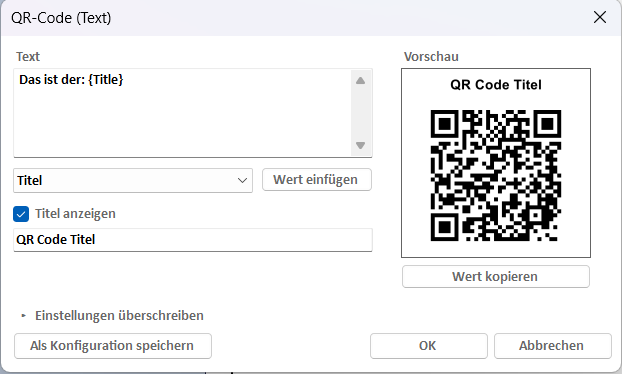
The QR Code tool lets you place QR codes directly on Inventor drawings. The content of a QR code can be free text, a saved configuration, a Vault ThinClient link, or a Fusion Manage link. Placed QR codes are stored as sketched symbols and can be edited or updated at any time.
The feature is only available in drawing documents.
Commands

You will find the commands in the ribbon in the QR Code panel.
QR Code

Places a QR code with free text. The command opens the QR Code dialog, in which you define the content, the title, and optional settings for this specific placement.
Configurations
Saved configurations appear as their own button labeled with the name of the configuration. Clicking it places the QR code directly without opening the dialog. If several configurations are saved (up to five), the other entries are available in the drop-down menu of this button; the most recently used entry is shown directly on the button.
QR Vault
Places a QR code containing a Vault ThinClient link. The button is only visible if it has been enabled in the settings.
QR Fusion Manage
Places a QR code containing a Fusion Manage link. The button is only visible if it has been enabled in the settings.
Update QR codes
Updates all QR codes in the active drawing. This reloads the current values of the iProperties and regenerates the QR code images. The update can also be triggered automatically via the Update on open and Update on save events in the settings.
Edit QR code
Opens an existing QR code for editing. The command covers all sheets of the drawing and lists all QR codes found: if there is only one, the edit dialog opens directly. If there are several QR codes, a selection dialog is shown first. Its first column Sheet shows on which sheet each QR code was found.

QR Code Dialog
After starting the command, the QR Code dialog opens with a live preview of the code.
Text and Variables
Text: The content of the QR code. In addition to fixed text, variables are supported. They are resolved when the code is generated and again on every update:
{iProperty name}: Value of the corresponding iProperty, e.g.{Title}or{Part Number}.{Name of the custom iProperty}: Value of a user-defined iProperty (custom property) of the model. All types are supported: number, text, yes/no, and date.{Date}: Current date in short format.{Date:format}: Current date in a custom format, e.g.{Date:yyyy-MM-dd}.{FileName}: File name of the drawing without extension.
The iProperty values are read from the model referenced by the first valid drawing view on the sheet the QR code is placed on. Views without a model reference (e.g. draft views) are skipped. In the dialog, this is the active sheet.
Insert value: Use the drop-down list to select an iProperty from the model and insert it as a variable at the cursor position in the text using the button. The drop-down list only contains the standard iProperties. The built-in variables {Date}, {Date:format}, and {FileName} as well as custom iProperties are typed directly into the text. If the custom iProperty has a value, the preview immediately shows a valid QR code with the resolved value.
Title
Show title: Displays an optional title above the QR code. The title text is entered in the adjacent field.
Preview and Copy Value
Preview: The preview updates continuously while you type. If the input is invalid, a corresponding message is displayed.
Copy value: Copies the resolved content of the QR code (after all variables have been substituted) to the clipboard. This makes it easy to check which value is actually encoded.
Override Settings
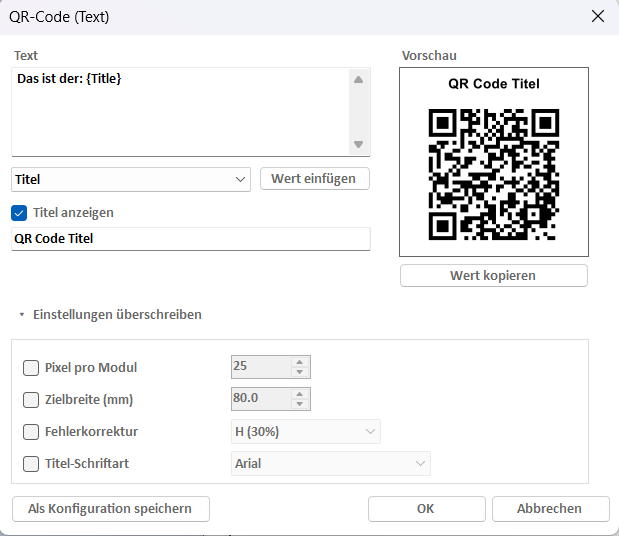
This collapsible section allows you to override the global rendering settings for an individual QR code. To do so, enable the checkbox of the respective option. Options that are not enabled continue to use the global values from the settings.
Pixels per module: Determines the resolution of the generated QR code image. A module is one of the small black or white squares the QR code is built from. The value defines how many pixels each module is drawn with (1 to 100). Higher values produce a sharper image, which helps especially when the QR code is printed large.
Target width (mm): The physical width of the QR code on the drawing sheet in millimeters (1 to 1000). This allows an individual QR code to be placed larger or smaller than the global default.
Error correction: QR codes contain redundant data so they remain readable even when part of the code is damaged, covered, or dirty. The level determines how much of the code may be lost:
- L (7%): Lowest redundancy. For the same content, the code stays the coarsest and is therefore the easiest to scan, but tolerates only minor damage.
- M (15%): Balanced default value that is sufficient for most applications.
- Q (25%): Increased robustness, e.g. for drawings that may get dirty or crumpled on the shop floor.
- H (30%): Highest robustness. Almost a third of the code may be unreadable.
The higher the level, the more modules the QR code contains for the same content. Very dense codes can be harder to scan at a small target width.
Title font: The font used to render the title above the QR code. The fonts installed on the computer are available for selection.
Placing
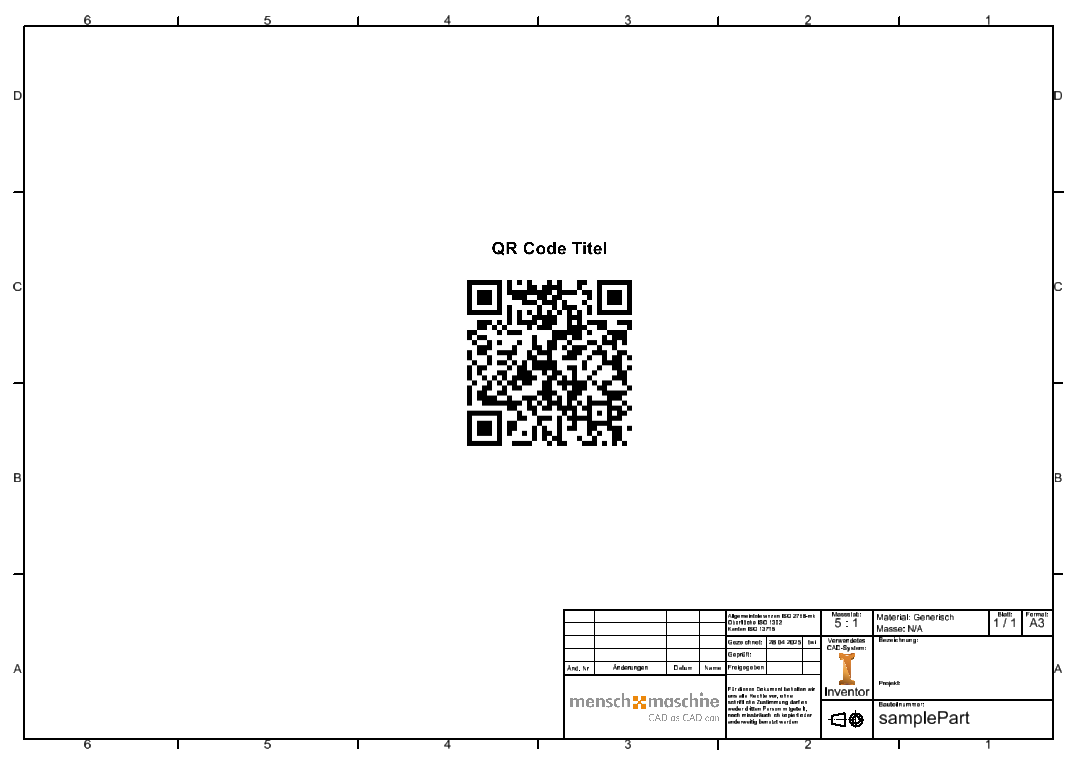
After confirming with OK, the program prompts you to pick an insertion point on the sheet (right-click to cancel). An active sheet sketch is left automatically. The position of the dialog is saved and reused the next time it is opened.
Configurations
Frequently used QR codes can be saved as configurations. Up to five configuration slots are available. Saved configurations appear as their own button in the ribbon after restarting Inventor and can then be placed directly without a dialog.

You create a configuration either directly from the QR Code dialog using Save as configuration or in the settings. Existing configurations can also be edited or deleted in the settings.
If a configuration is placed multiple times in the same drawing, all instances share a common symbol definition and are updated together.
Vault ThinClient Link
The QR Vault command creates a QR code containing a direct link to the file in the Vault ThinClient (http://Server/AutodeskTC/VaultName/explore/file/…). The content is determined automatically; the text field is disabled for this type.
Requirements:
- Server name and vault name are configured in the settings.
- The Vault add-in is loaded in Inventor and you are logged in to Vault.
- The drawing has been saved and is located inside the Vault working folder.
If a requirement is not met, the dialog shows a corresponding message (e.g. "Not logged in to Vault. Please log in to Vault in Inventor first.").
Fusion Manage Link
The QR Fusion Manage command creates a QR code containing a link to the corresponding record in Fusion Manage. The link is built from two Vault properties (by default "WsId" and "DmsId"). In the settings, you define whether the properties are read from the drawing itself or from the model of the first drawing view.
If the properties are missing in Vault or do not contain valid values, a corresponding message is displayed.
Updating QR Codes
The variables of a QR code are not automatically re-resolved on every change of the document. QR codes can be updated in the following ways:
- Manually: The Update QR codes command regenerates all QR codes in the active drawing.
- Automatically: Updating on document open and/or save can be enabled in the settings.
If no referenced drawing view is found for a QR code during an update, the program asks whether the QR code should be deleted or kept unchanged. Read-only drawings are not modified.
Editing QR Codes
The Edit QR code command reopens an already placed QR code in the dialog. If the drawing contains multiple QR codes, a selection dialog listing sheet, type, title, and content of the existing codes is shown first. For Vault and Fusion Manage codes, the text field is disabled because the content is generated automatically.
Settings
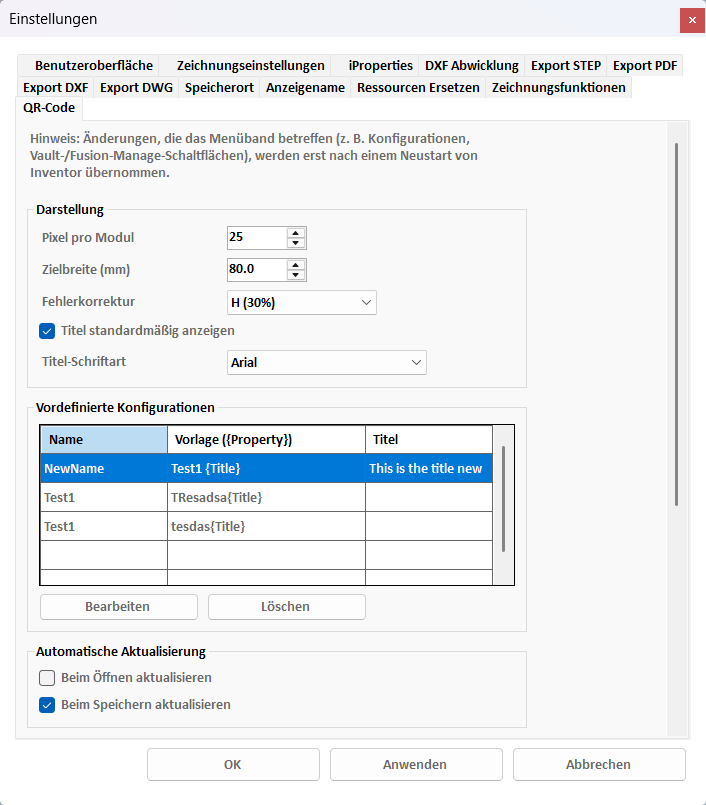
The settings for this feature can be found in the Multitool settings dialog on the QR Code tab.
Changes that affect the ribbon (e.g. configurations or the Vault/Fusion Manage buttons) only take effect after restarting Inventor.
Rendering
Pixels per module: Resolution of the generated QR code image (default: 20).
Target width (mm): Physical width of the QR code on the sheet (default: 25 mm).
Error correction: Level of redundancy in the QR code: L (7%), M (15%), Q (25%), or H (30%). Higher levels make the code more robust against damage but increase the data density (default: M).
Show title by default: Pre-selects the "Show title" option in the QR Code dialog.
Title font: Font for the title above the QR code (default: Arial).
A detailed description of the individual options can be found above in the "Override Settings" section of the QR Code dialog.
Predefined Configurations
Table with the up to five saved configurations (name, template, title). Edit opens the selected configuration in the QR Code dialog, Delete removes it after a confirmation. QR codes that have already been placed remain in the drawing when a configuration is deleted.
Automatic Update
Update on open: Updates all QR codes when a drawing is opened.
Update on save: Updates all QR codes when a drawing is saved.
Vault ThinClient Link
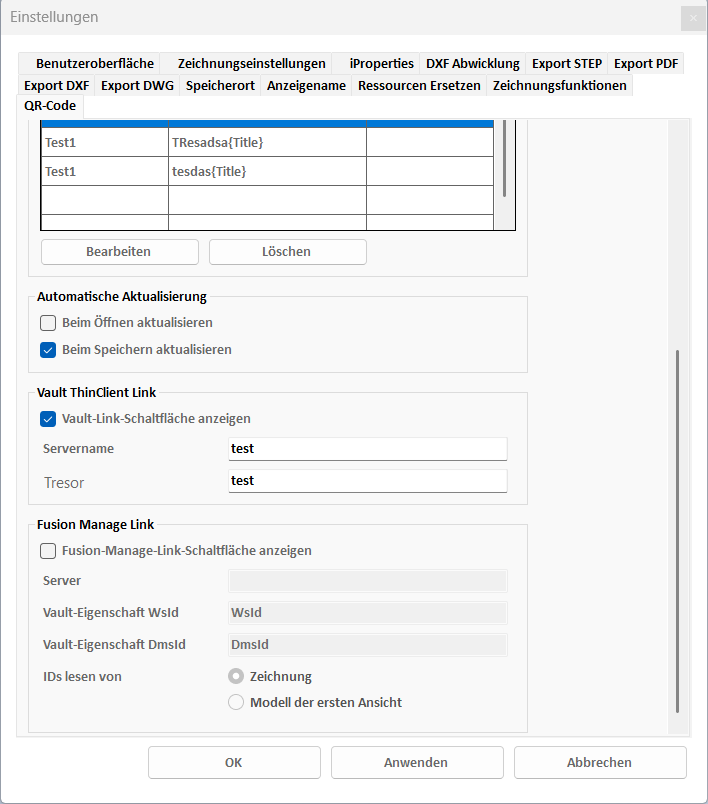
Show Vault link button: Shows the QR Vault command in the ribbon.
Server name: Name of the Vault server.
Vault name: Name of the vault.
Fusion Manage Link
Show Fusion Manage link button: Shows the QR Fusion Manage command in the ribbon.
Server: URL of the Fusion Manage server.
Vault property WsId / DmsId: Display names of the Vault properties from which the link is built (default: "WsId" and "DmsId").
Read IDs from: Defines whether the properties are read from the Drawing or from the Model of the first view.